
Sector · Schools, colleges, universities
Educational digital signage: the right information, in the right place
Everyday questions, answered on screen.
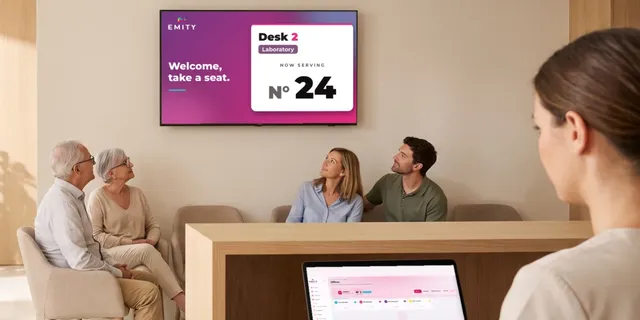
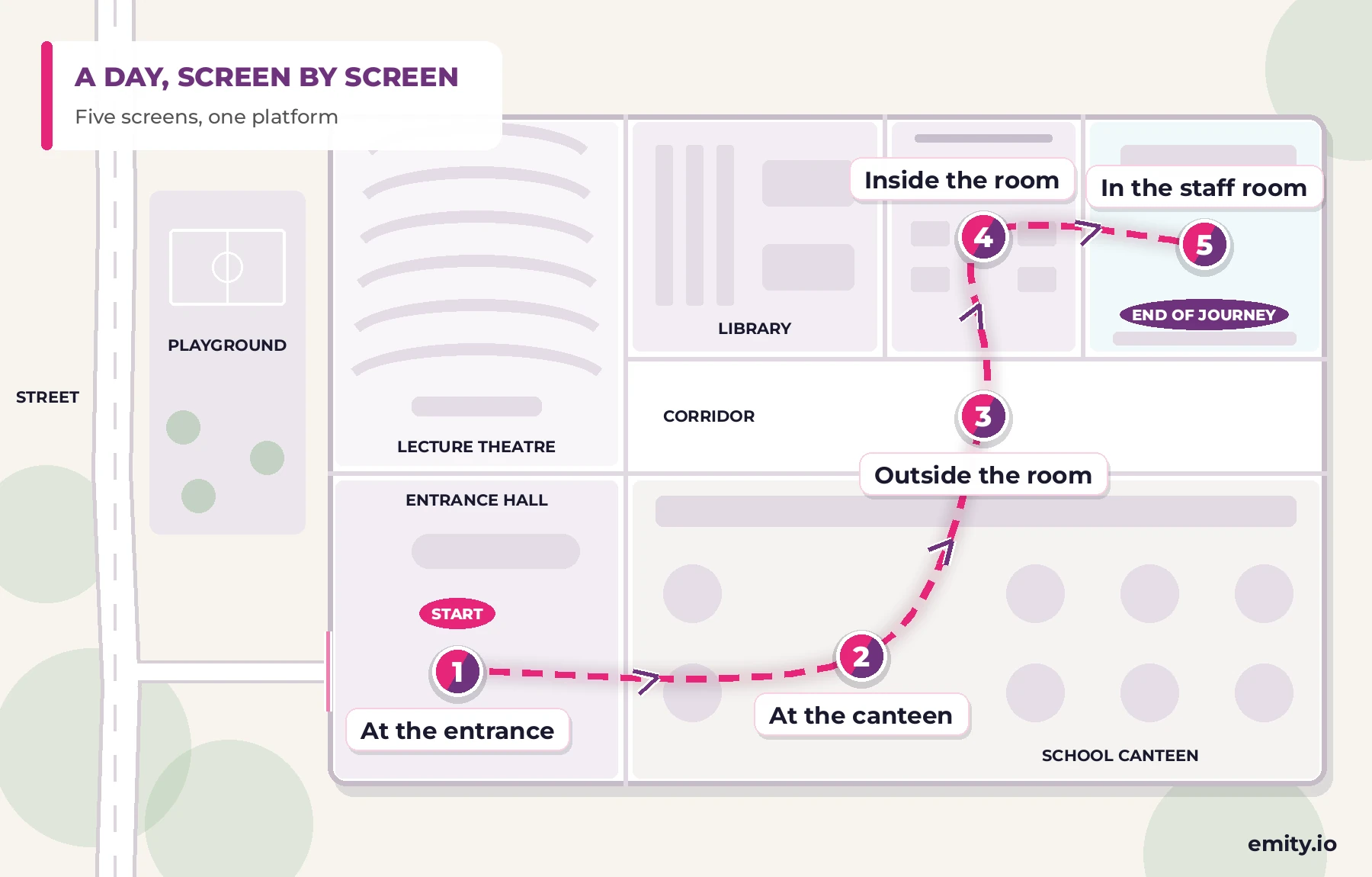
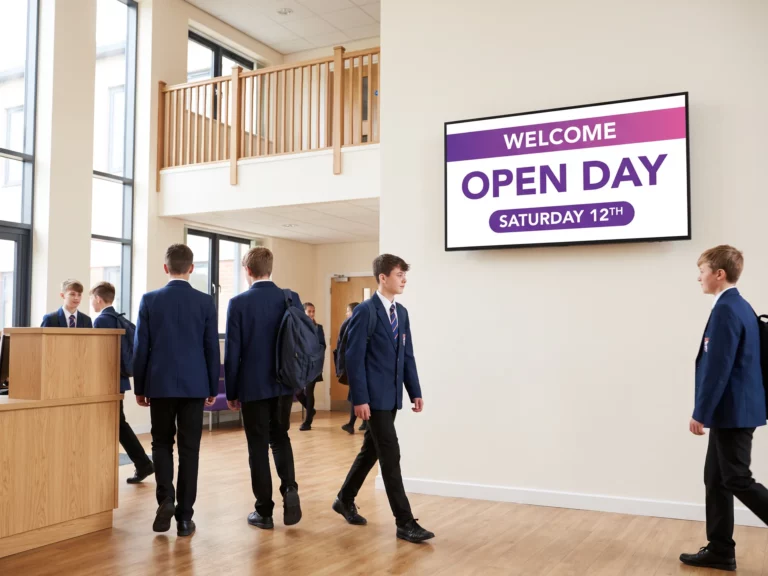
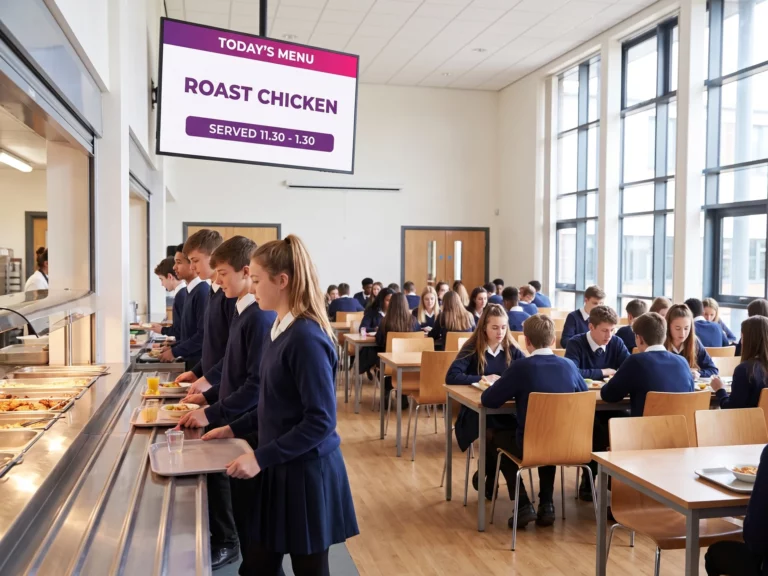
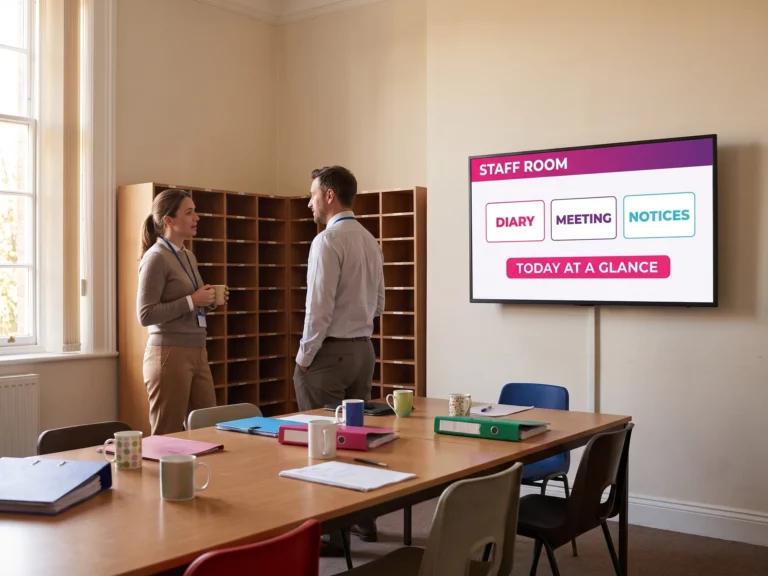
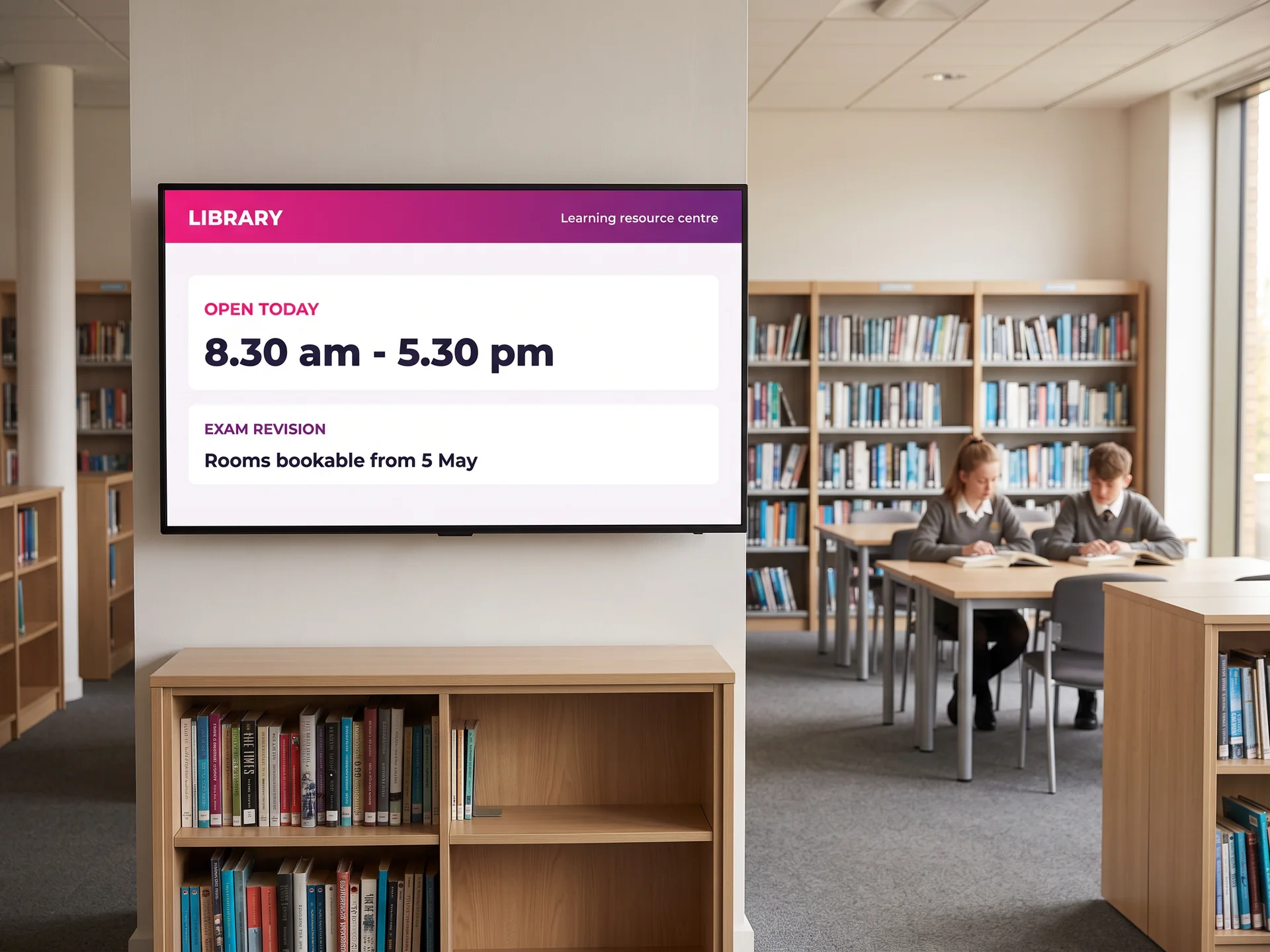
A timetable that changes, a canteen opening early, a room moved, an open day on Saturday: a well-placed screen answers on its own, at the entrance, at the canteen, outside the room and in the staff room.
The experiences involved
Six EMITY experiences, one platform for the whole school.
01Definition
What is digital signage in a school?
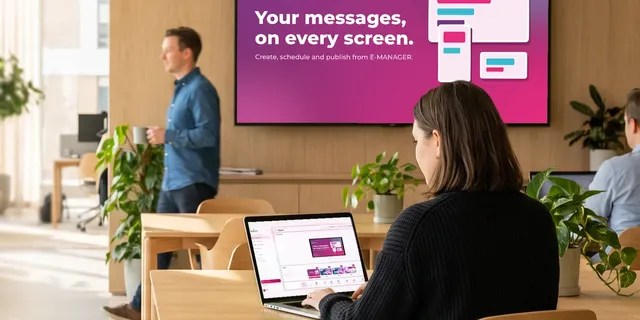
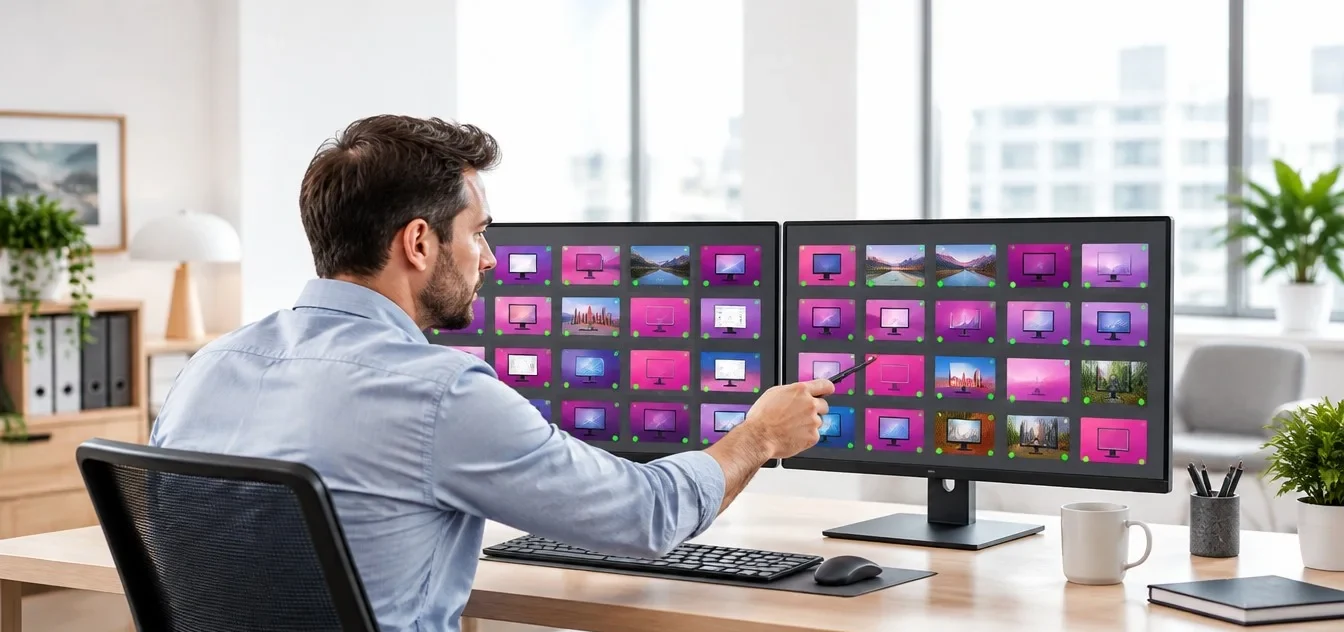
Digital signage is a network of connected screens driven remotely from a single piece of software.
In education it takes over from the noticeboard in the entrance hall, the sheets taped to classroom doors and the printed notices nobody reads twice.
Three things change compared with printed notices:
- ✓Information is updated remotely: a room change entered at 8 am is visible everywhere within the minute.
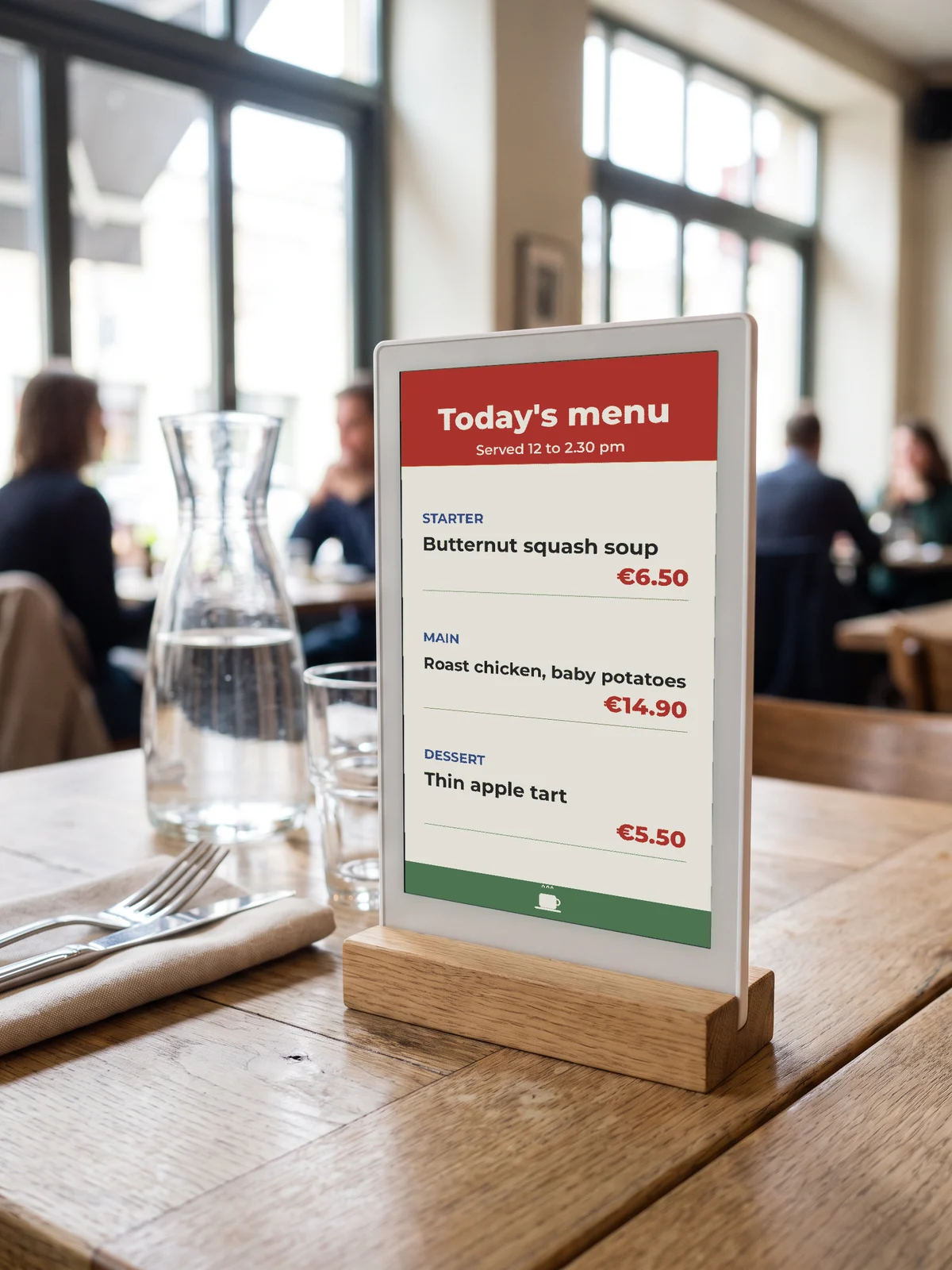
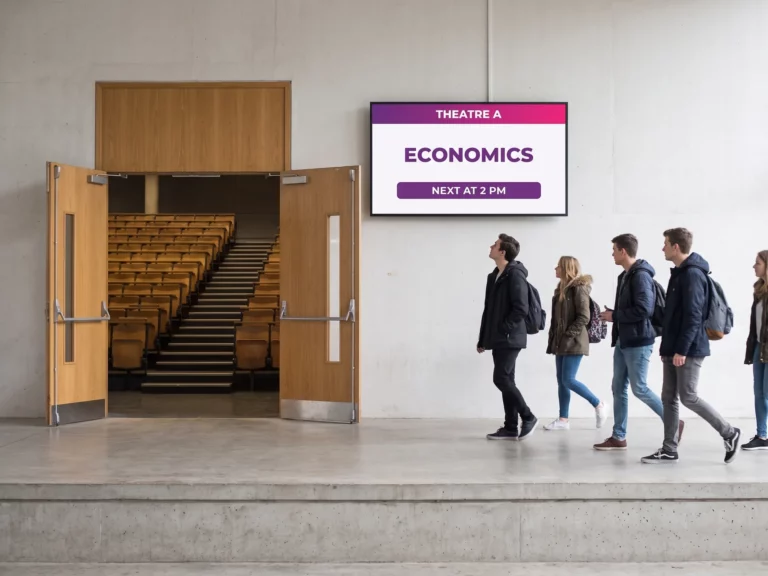
- ✓Every area carries its own message: the entrance hall welcomes families, the canteen shows the menu, the corridor lists the day’s lessons.
- ✓Publishing is scheduled ahead: exams in June, the open day in March, safeguarding notices all year round.
02The journey
Where do screens earn their place in a school?
The principle fits in one line
The right information, in the right place, at the right time.
A school does not need more screens, it needs each screen to say what matters where it hangs. These are the five places that come up everywhere, from the front gate to the staff room.
03Schools, campuses and training centres
A public on the move,
information that keeps up.
Timetables, room changes, alerts: in a school, information changes every day. The same software serves a single-building school as well as a campus or a training centre.
A note on the noticeboard gets missed. A screen in the corridor gets read.
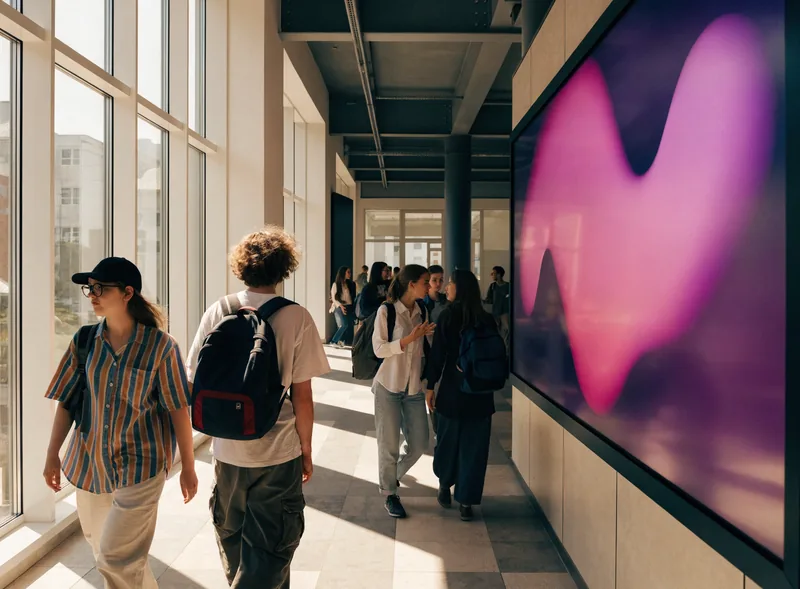
Pupils, students, trainees and families walk past the screens several times a day: that is where the information waits for them.
- ✓Corridors, entrance hall, cafeteria: every screen is updated remotely, without going round the buildings
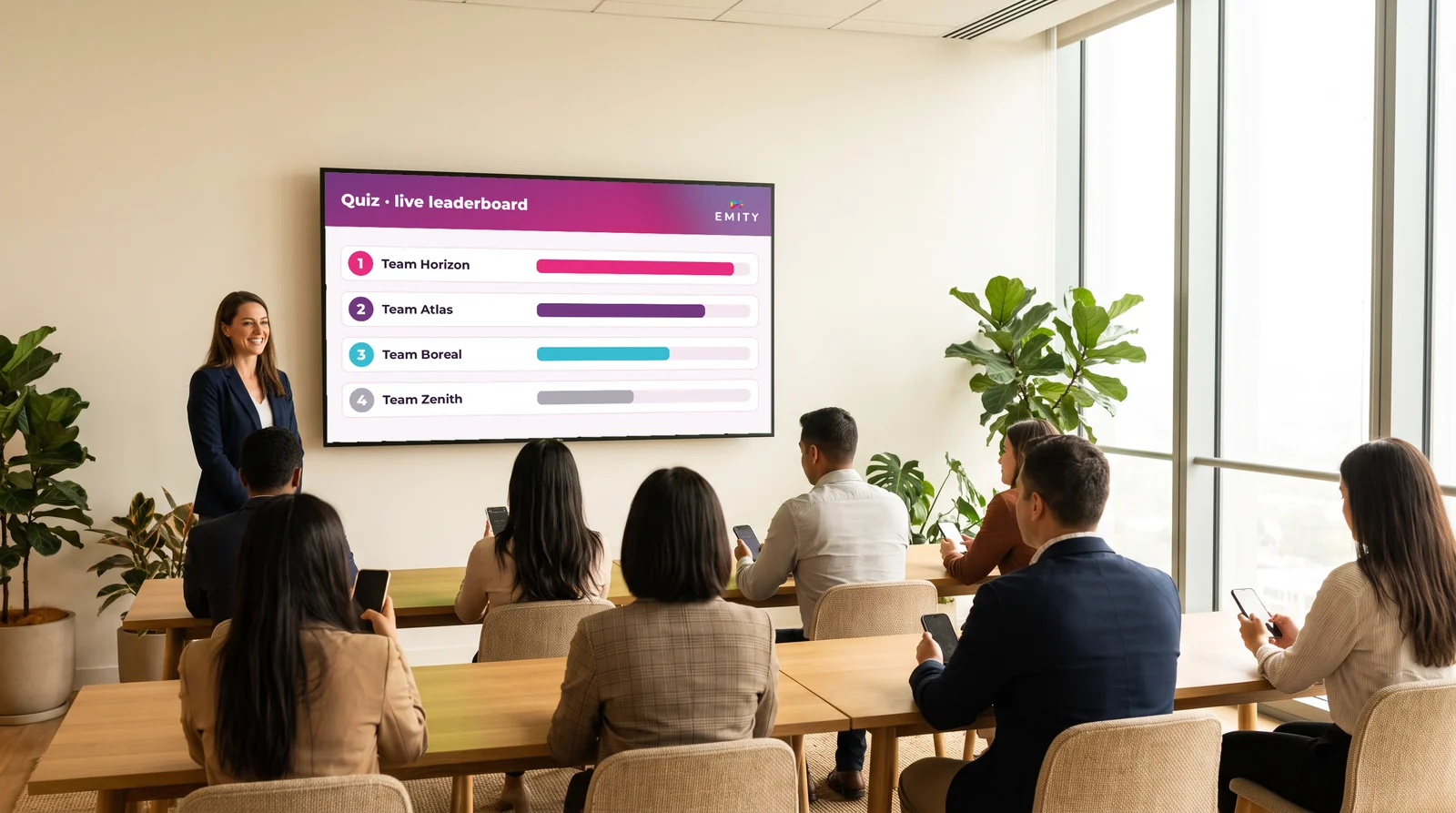
- ✓Quizzes and leaderboards in training rooms: participants answer from their phones and the leaderboard updates live
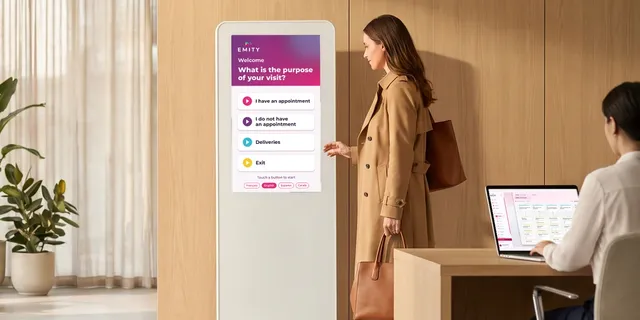
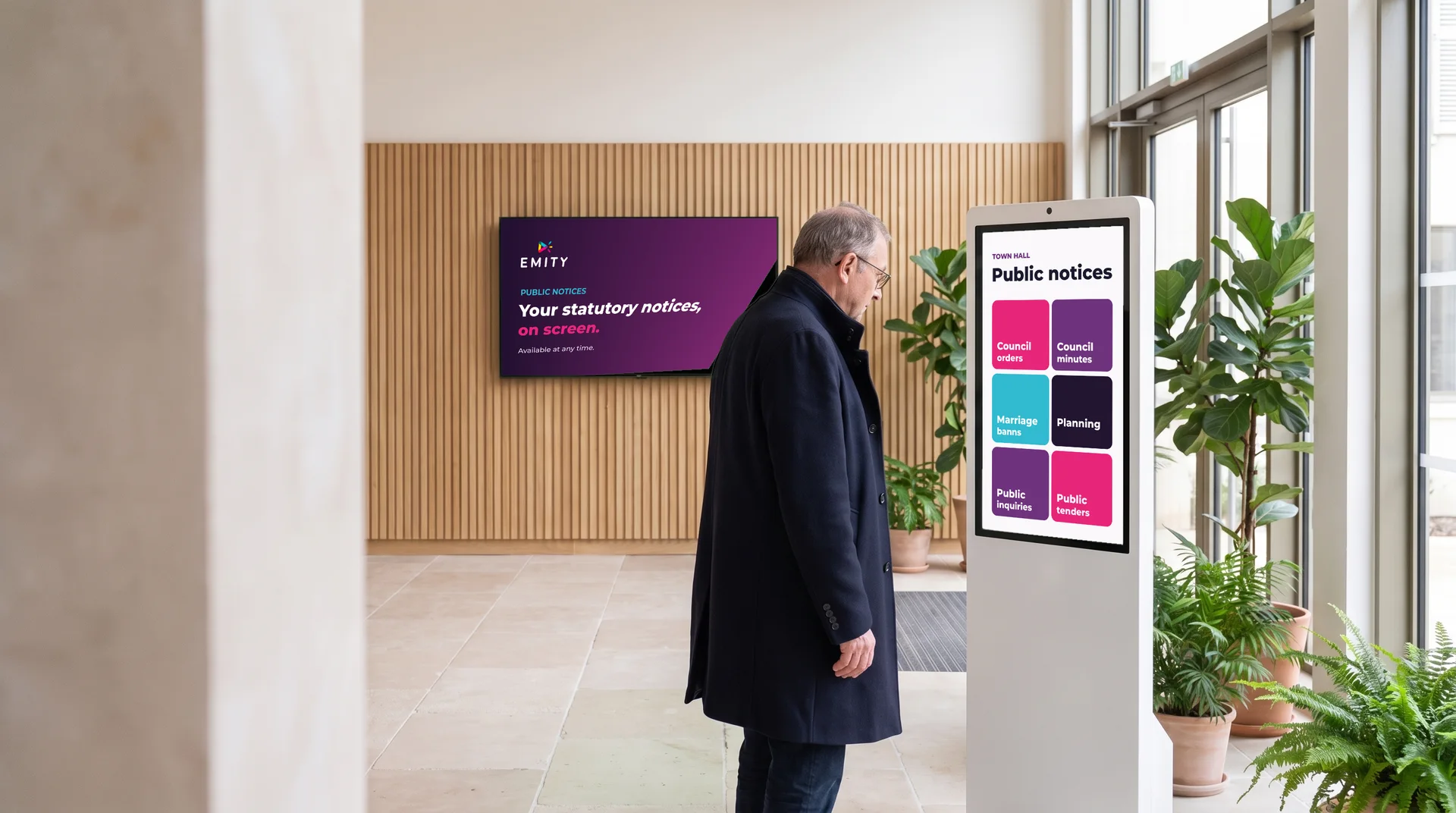
- ✓Touch kiosks: wayfinding and campus life, open to everyone
- ✓Rights by school, building or department: everyone publishes for their own area without touching anyone else’s
From one screen to a whole campus.
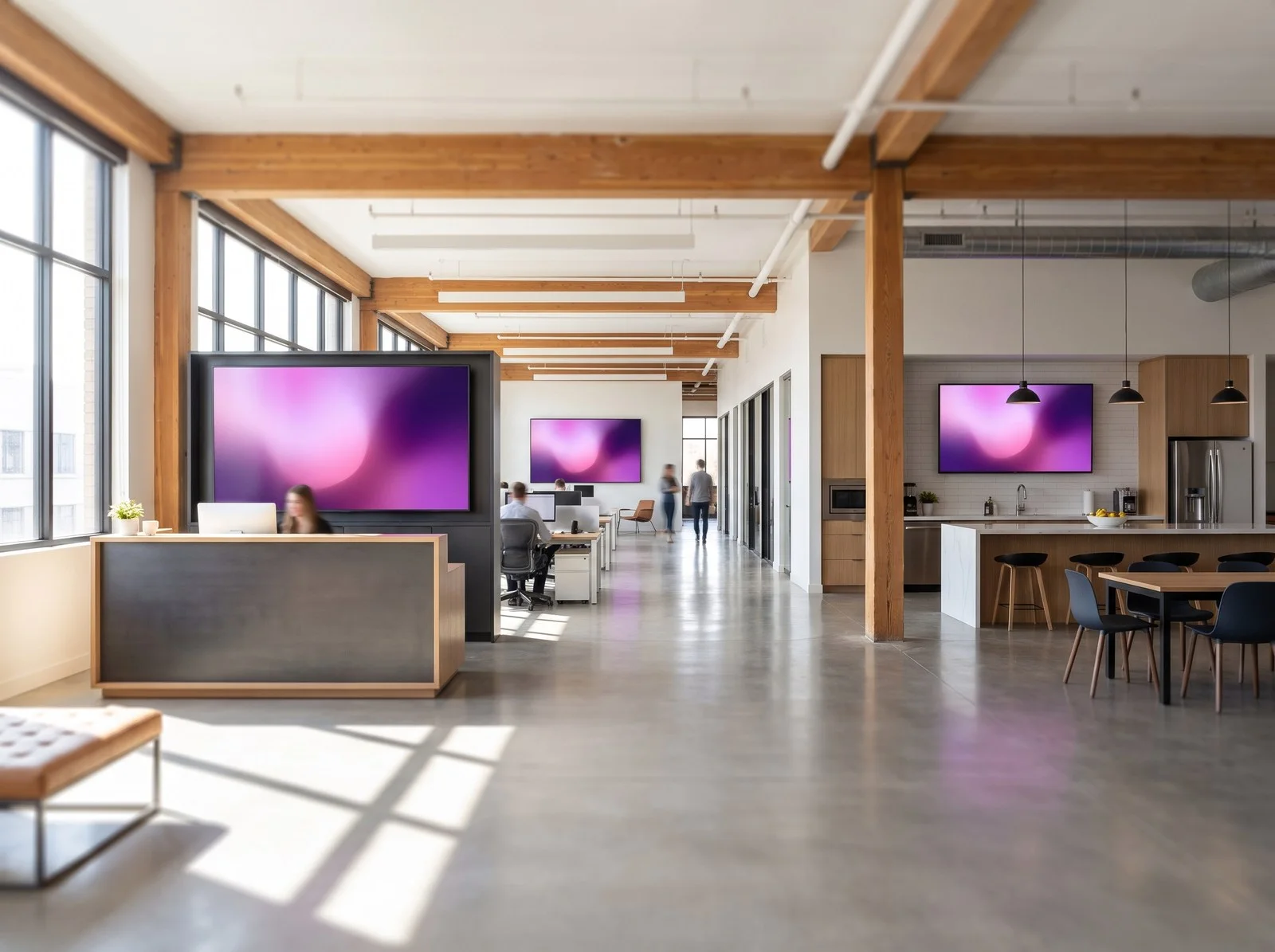
The setup scales with the school: a single screen in a primary school entrance, or a full network across a university campus. Same interface either way, from 1 to 1,000 screens per account.
04Timetables
Today’s timetable and room changes, on screen
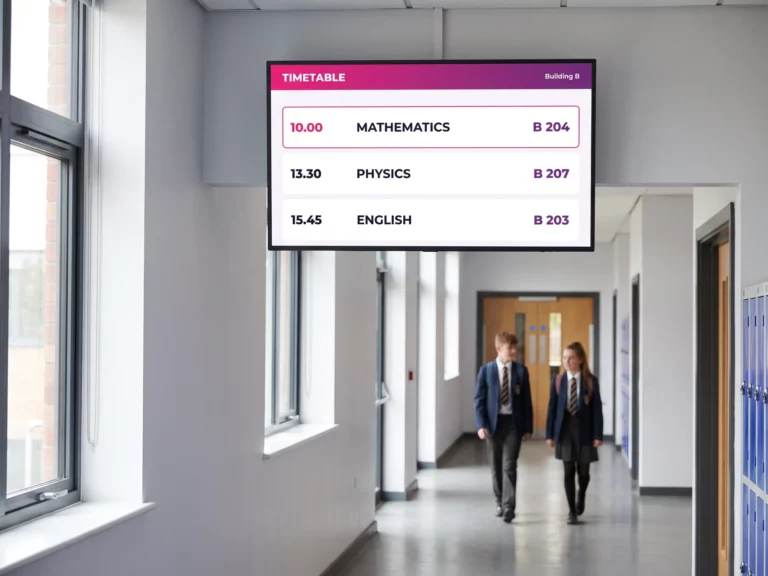
A teacher off sick, a room double-booked, an exam moved: in a school the timetable shifts every day. Shown in the entrance hall and along the corridors, it saves the crowd gathering at the school office window and the pupils hunting for their room.
The timetable is updated from E-MANAGER, and the current lesson is highlighted automatically. You can enter the periods by hand or connect your existing MIS — SIMS, Arbor, Bromcom and the like — so the data flows through on its own, with no double entry.
- ✓The current lesson highlighted, the next ones announced.
- ✓Today’s changes flagged along the bottom of the screen.
- ✓A view per building or per floor: each screen shows only what concerns its own area.
05E-PAPER
At the classroom door: e-paper and attendance by QR code
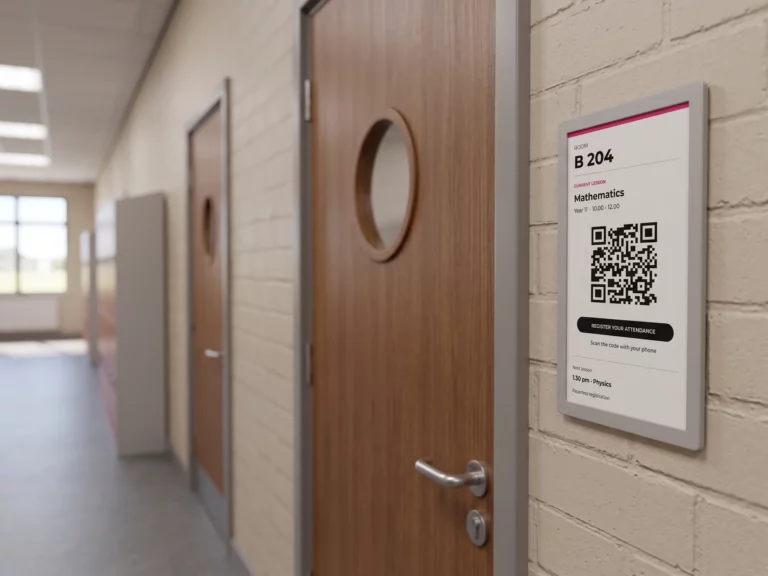
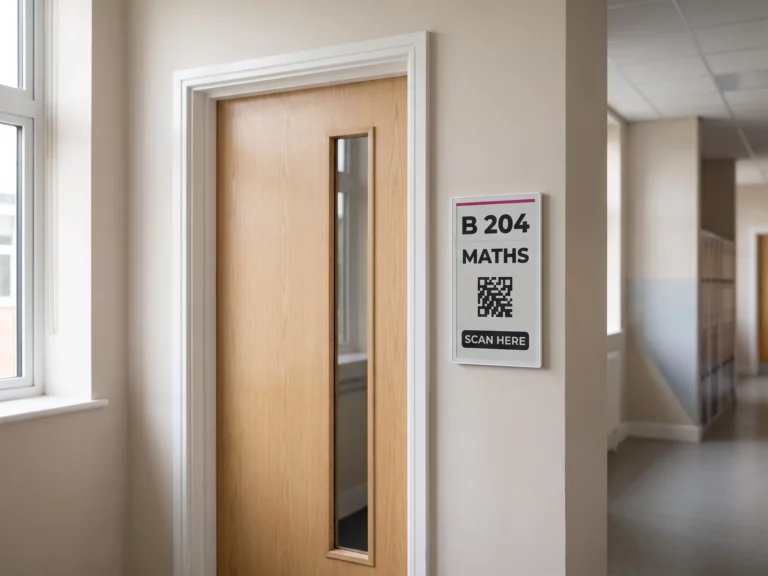
Outside each room, an E-PAPER electronic ink panel shows the lesson in progress, the class and the time — and carries a QR code that students scan to register their attendance. The paper register that travels along the rows, goes missing and then gets typed up by hand simply disappears.
Electronic ink suits this job particularly well: it draws no power while the display stays the same, runs up to five years on a charge and reads without glare in a lit corridor. No cable to pull to every classroom — the panel goes up like a picture frame.
- ✓Time-stamped attendance: each scan is dated and the register fills itself in.
- ✓The panel follows the timetable: at the change of period, the display follows.
- ✓EMITY is the first French publisher to support electronic ink, with SOLUM and SAMSUNG.
06Uses
What do screens actually do in a school or college?
Six situations schools meet all year round — from the safety drill to enrolment day. One piece of software covers them all, with different content on each screen.


07How it works
How does a screen network fit into a school?
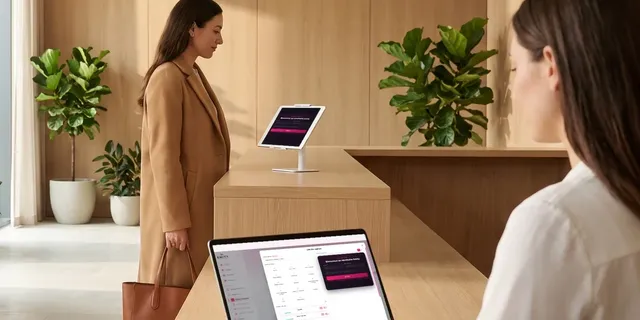
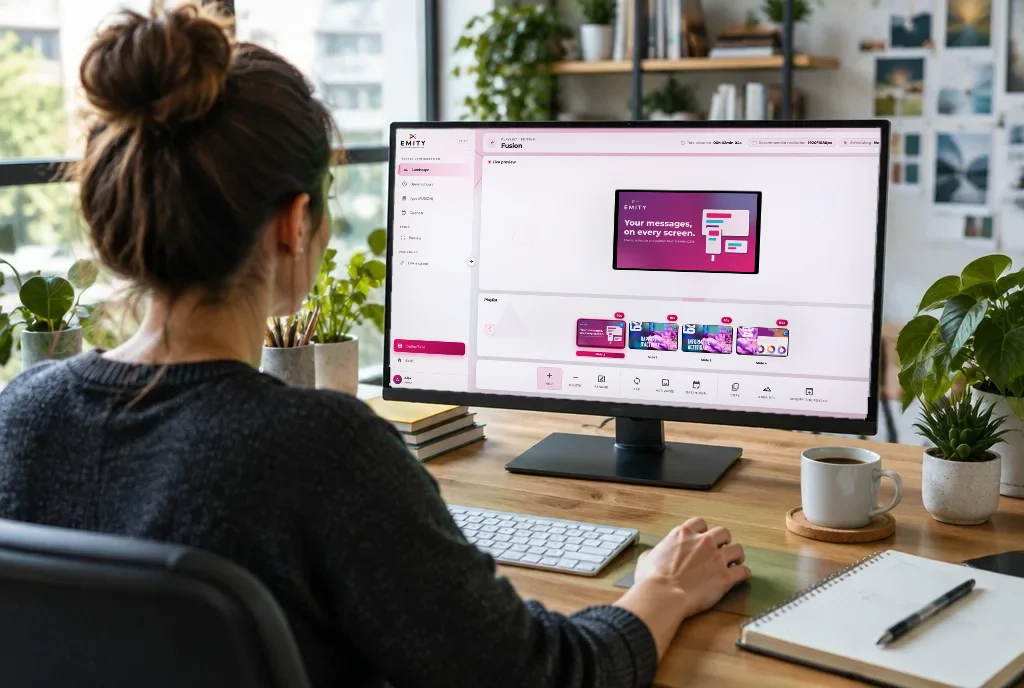
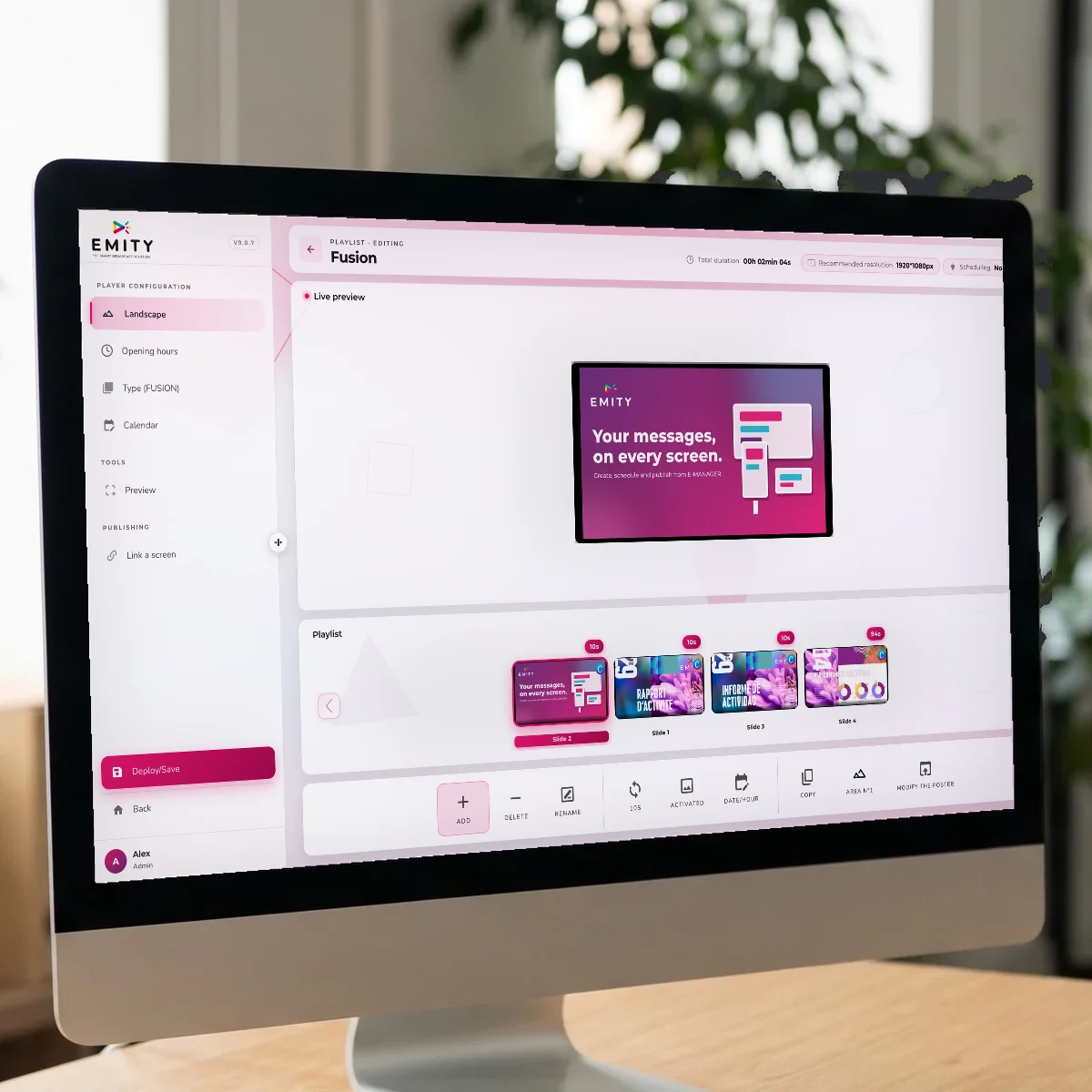
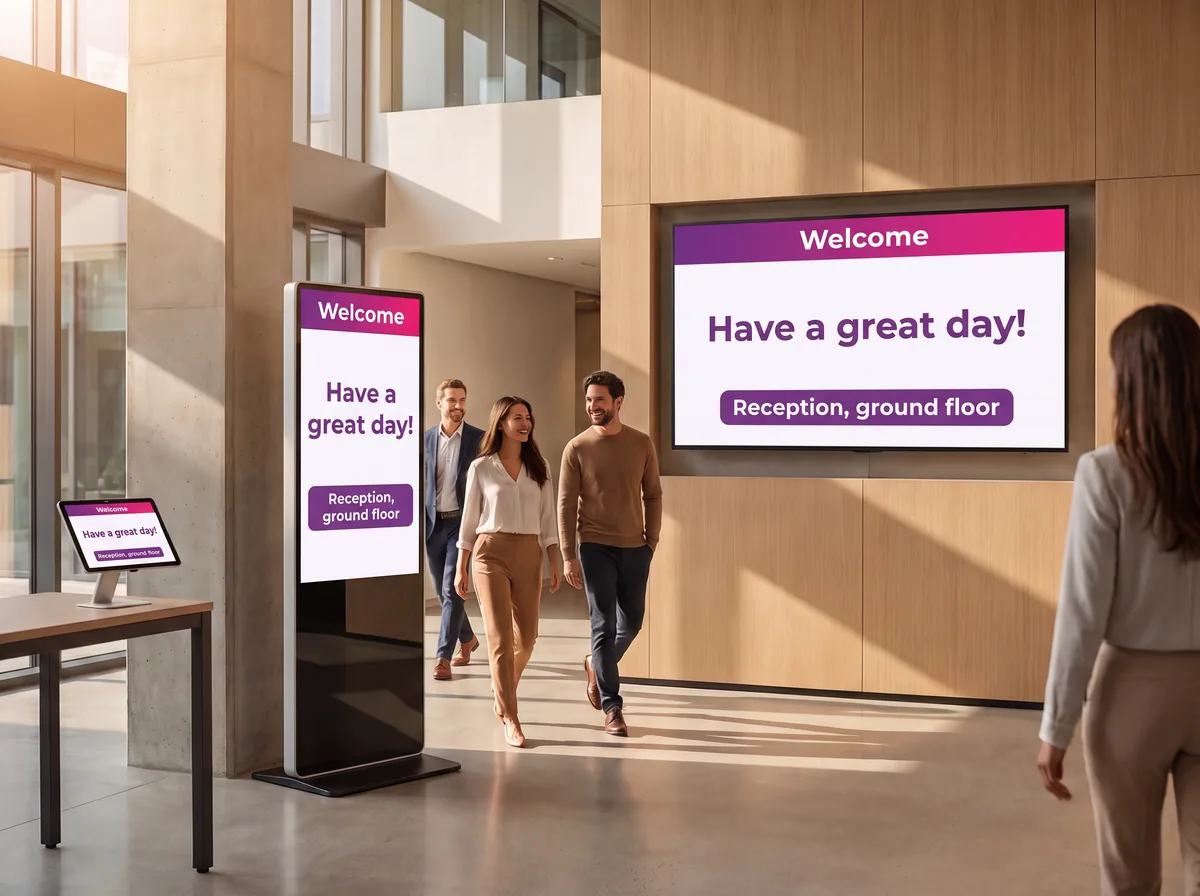
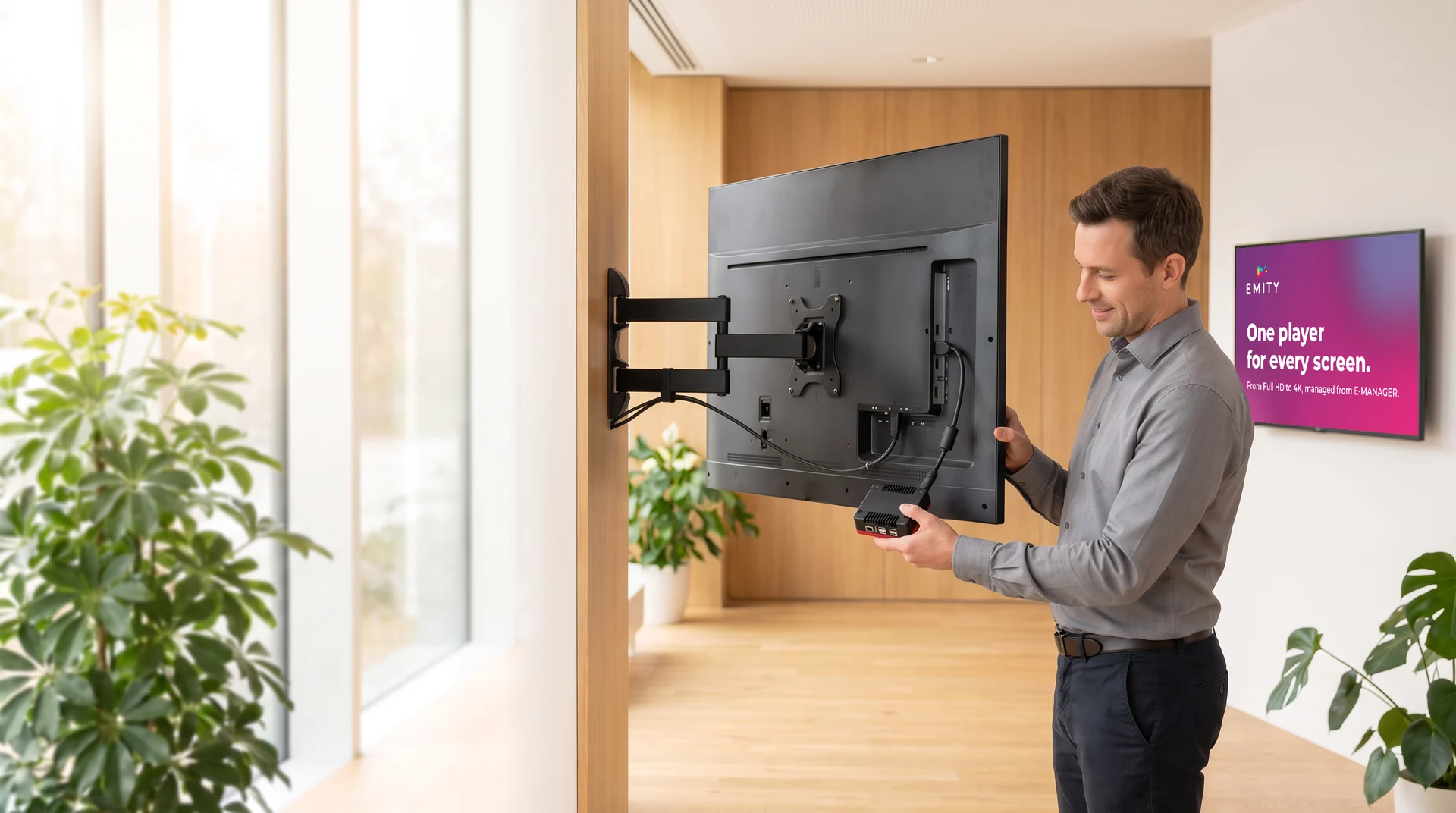
A screen network rests on three parts. The software — E-MANAGER — is the dashboard everything is driven from, in a plain browser. The player feeds the screen: the E-BOX box over HDMI, or the E-SOFT app installed inside the screen where it supports it. Then the screen itself: a display in the hall, a totem, an E-CLICK touch kiosk or an E-PAPER electronic ink panel at the classroom door.
08What to look for
What to expect from educational digital signage
A school is not an office: budgets are tight, staff wear several hats and the calendar follows the academic year. These six points are what make the difference once the screens are up.
| Topic | The question to ask | How EMITY answers |
|---|---|---|
| A school budget | Do we have to invest before knowing it works? | A free three-month trial, with every feature included on one screen, lets you prove it on one entrance hall before going further. |
| Existing screens | Do we need to replace the hardware? | Compatibility with every manufacturer: the E-SOFT app installs inside the screen (Samsung Tizen, LG webOS, Android), otherwise an E-BOX player plugs in over HDMI. |
| Timetables | Do lessons have to be retyped? | Periods are entered in E-MANAGER or pulled from your MIS through the API. |
| Attendance | How do we take the register without paper? | An E-PAPER panel at the door shows a QR code: the student scans it and attendance is time-stamped. |
| Safeguarding | How do we alert the whole site at once? | An alert playlist takes over every screen in one click, from a computer or a phone. |
| Support | Who installs it and trains the staff? | More than 130 certified distribution partners across France and Europe, with an engineering team for multi-building projects. |
09References
Schools and universities
already on screen.
From a single-site school to a multi-building campus, the support scales with the size of the estate. EMITY means more than 7,000 connected screens and more than 1,000 customer accounts, from 1 to 1,000 screens.

Université Grenoble Alpes
University

L’Institut Agro
Higher education in agronomy

Institut Paul Bocuse
School of culinary arts and hospitality

UFR STAPS Dijon – Le Creusot
Faculty of sport sciences
10Your data, protected
IT security
is our priority.
Before a screen is connected to a school’s network, the question often comes from the IT department of the university, the education authority or the local council. Here is the answer, measure by measure, and the deployment model that suits you.
More than 10,000 hours of development devoted to security
The data from your screens, your visitors and your users stays in France, on infrastructure we control. Development is done in-house: no critical component is outsourced.
- Hosting in France (OVH) and GDPR compliance across all modules
- ISO 27001 compliant, certification targeted for 2026
- Two-factor authentication (MFA) from the Premium plan, SSO with your directory on the Excellence plan
- Regular penetration tests: anticipating threats rather than discovering them
- Security assurance and business continuity plans: security, service continuity, playback maintained without internet
Three ways to deploy the platform:
- As SaaS, hosted by us;
- On your own servers (on-premise) when your policy requires it;
- Or hybrid, with management on our side and data on yours.

11FAQ


