
Meeting room digital signage: the right information at the right door
A room that looks free but is already booked, a visitor hunting for the right floor, an agenda printed yesterday and already out of date: around a meeting room, information goes stale fast. Screens driven from a single platform let you keep it current remotely, from the door panel to the reception desk.
Meeting rooms
What screens change around a meeting room
Digital signage is not there to decorate a corridor. It answers three very practical questions your teams and your visitors ask every day: is this room free, where is my meeting, and what is on the agenda.
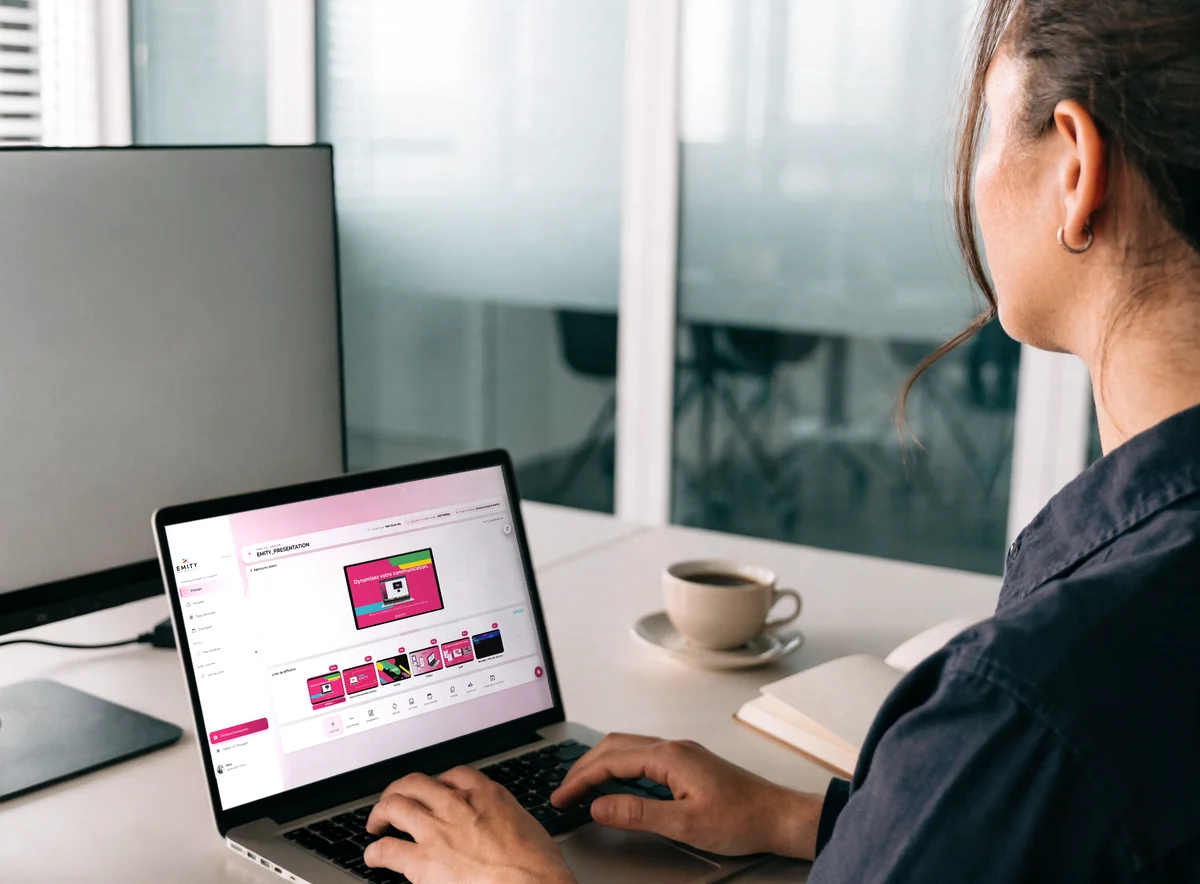
Digital signage, in two sentences
Digital signage means showing content — times, schedules, visuals, messages — on screens connected to an online platform. You prepare the content once in your browser, pick the screens it should reach, and the display updates remotely — no printer, no technician on site.
- ✓Room availability, readable before anyone opens the door
- ✓The agenda and the name of the meeting in progress
- ✓Wayfinding for visitors, from reception to the right floor
- ✓Safety notices and how to start the video call
At the centre of it sits E-MANAGER, our digital signage platform: one dashboard for every screen, whoever made it.


Content
What you show on these screens
Each block below matches one module of the EMITY suite. You switch on the ones you need, from the same dashboard and under a single contract.
The room schedule
The current slot, the next one, and the time the room frees up again. The source stays your company calendar.
The agenda
The points to cover, shown at the entrance or on the room screen before the session starts.
A touch kiosk
With E-CLICK the screen becomes interactive: your teams look for a free room and scan the whole floor without opening their calendar.
Visitor check-in
The guest book records the visitor’s arrival and notifies their host; the screen shows the room and the floor.
Room notices
How to start the video call, safety notices, who to call if something fails: looped on screen, never reprinted.
An e-paper door panel
On a door panel, electronic ink draws no power while the display stays unchanged, and stays readable without a backlight.
Going further
Showing availability, or managing the booking?
Two neighbouring needs, but distinct ones — worth separating before you choose.
Showing availability
That is what this page is about. The screen reads your calendar and makes it visible where the question comes up: at the door, at reception, along the corridor. No booking happens on the screen itself.
- ✓Quick to roll out, no change to your habits
- ✓Works with the calendar you already use
- ✓One screen is enough to start
Managing the booking
If what you need is to book the rooms — allocation rules, automatic release of an unconfirmed slot, booking straight from the panel — that is a different module, and it has its own page.
- ✓Book from the screen or from mobile
- ✓Outlook and Google Calendar integration
- ✓Extends to desks and parking spaces
Getting started
How it works, step by step
Four steps separate a room with no screen from a room that informs. The first room takes about an hour; the next ones are duplicated.
A screen — or the one you already have
A professional display, a door panel or a tablet. EMITY is compatible with every manufacturer, so your current estate can stay in place.
The player, or the app
An E-BOX player plugs in behind the screen. If your screen is a connected model — Samsung Tizen, LG webOS or Android — the E-SOFT app installs straight onto it, with no box at all.
The link to your calendar
The platform connects to the calendar you already use. Slots come across on their own: no double entry to plan for.
Updates, from your browser
You build the visual in the EMITY built-in editor — and, if your teams already use them, in Canva or Adobe Express. The screen updates remotely.
Choosing the hardware
Which screen for which room?
The sizes below are orders of magnitude, not a rule. What matters is reading distance: a door panel is read from a metre away, a room screen from five or six.
| Location | Indicative size | What the screen carries | EMITY hardware |
|---|---|---|---|
| Door panel | 10 to 15 inches | Availability and current slot | LCD display or electronic ink |
| Small room (2 to 6 people) | 43 to 55 inches | Agenda, screen sharing | Connected screen + E-SOFT |
| Meeting room (6 to 20) | 55 to 75 inches | Presentations, video calls, schedule | Professional display + E-BOX |
| Board room or auditorium | 75 inches and up, or a video wall | Synchronised playback across several screens | E-BOX 4K, master-slave sync |
| Corridor or room cluster | 32 to 55 inches, touch optional | Whole-floor view, search for a free room | Touch screen + E-CLICK |
Trusted by
EMITY in a few figures
A French software company since 2018, sold through a network of certified resellers across France and Europe.
+7,000
screens connected
+1,000
customer accounts
+130
reseller partners
+20
countries
FAQ

