
Universal compatibility · E-MANAGER
Compatible equipment: digital signage on the screens you already have
Your screens stay yours.
Samsung, LG, Sony, Philips, iiyama… Tizen, webOS, Android, Windows or Linux: EMITY adapts to the hardware already in place instead of imposing its own, and everything is managed from the same E-MANAGER console.
Universal compatibility
The only ones compatible
with every manufacturer.
A buyer’s first question is rarely about software. It is about what needs replacing, and the answer is: nothing.
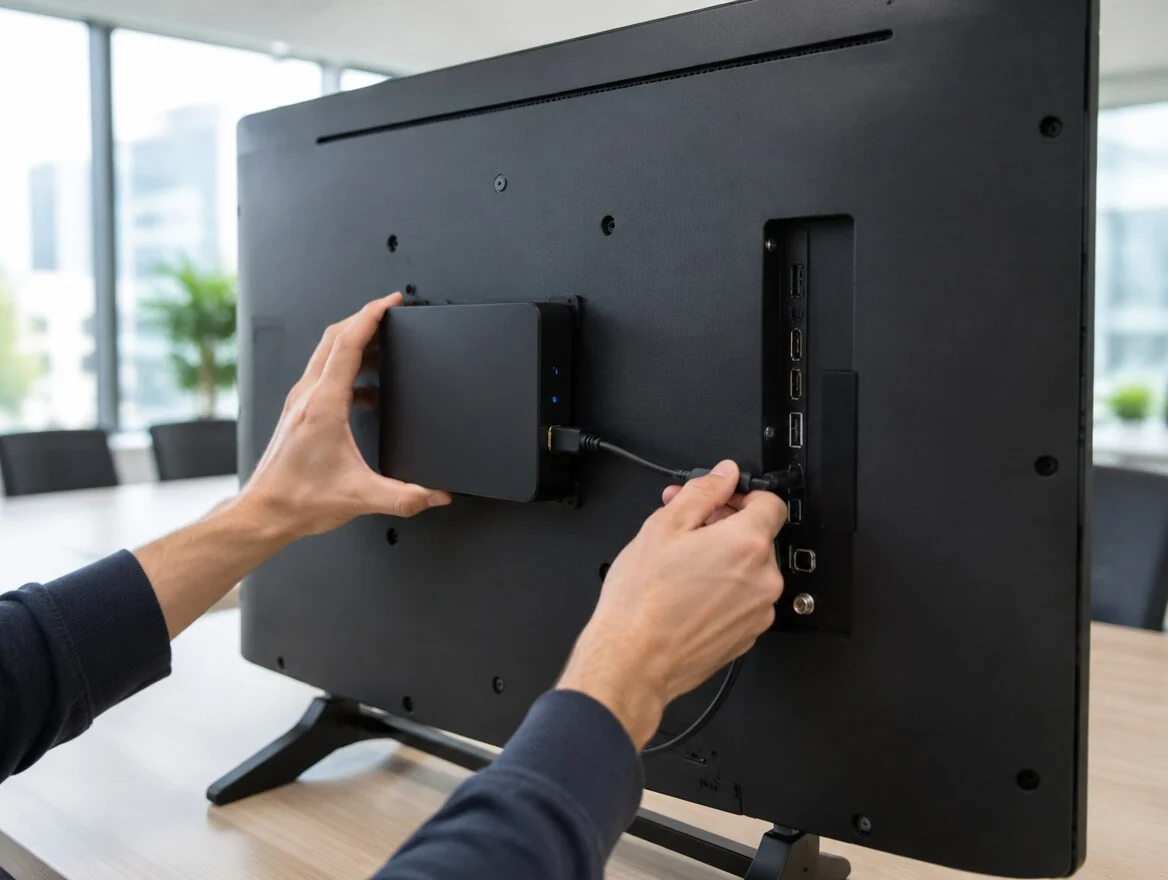
The player behind the panel,
or the app inside
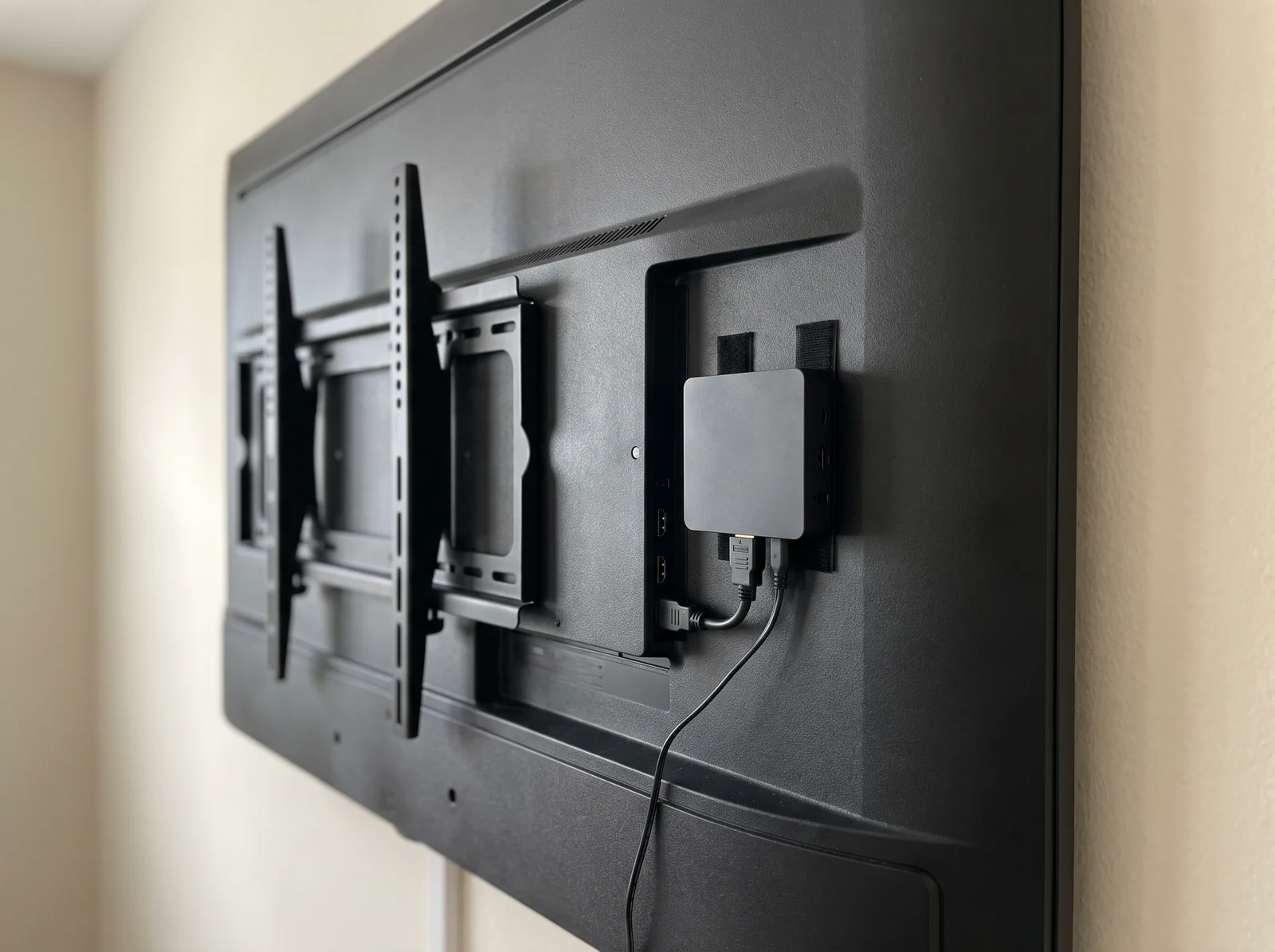
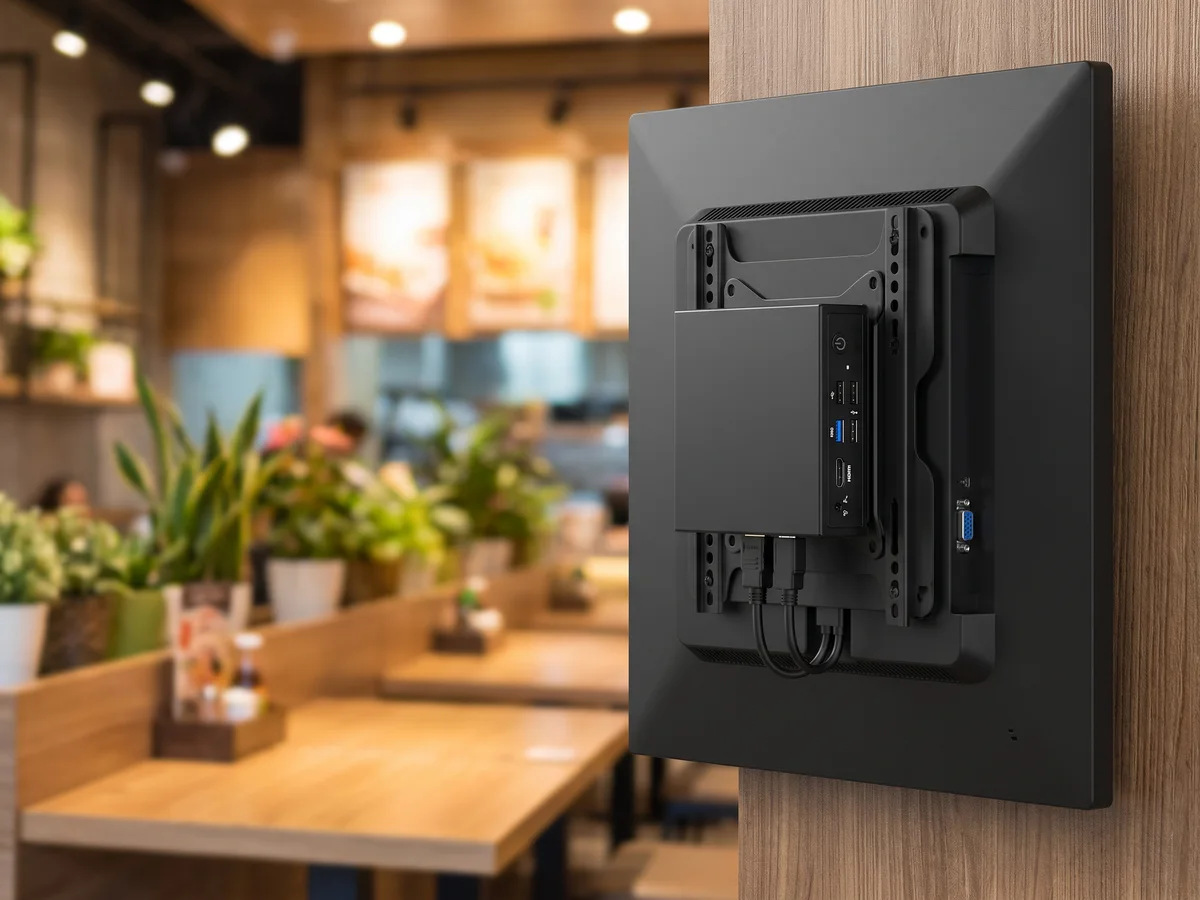
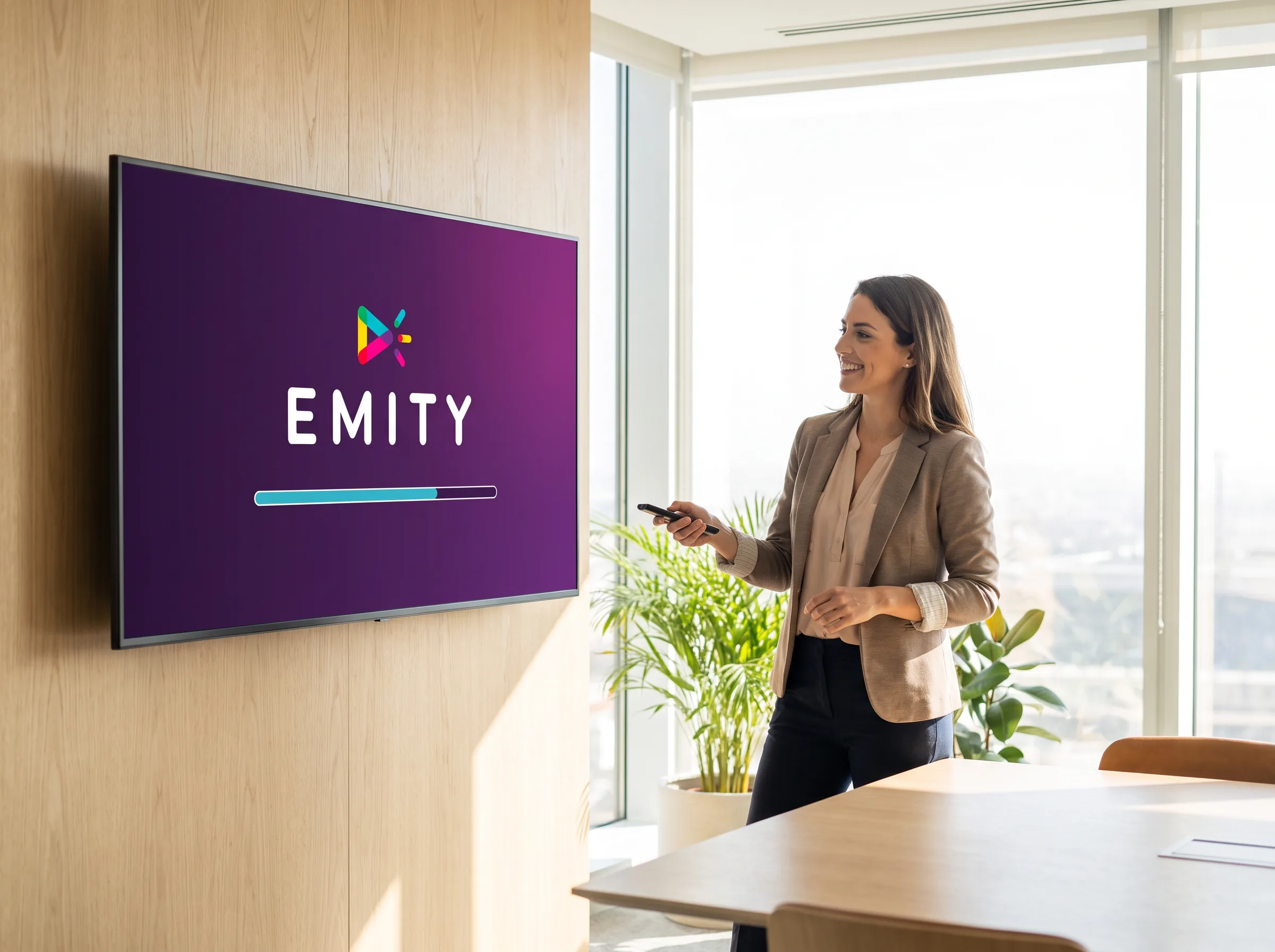
A screen already installed does not need replacing to join the platform. If it has a video input, an E-BOX player fits behind it and connects to it. If it runs its own system, the E-SOFT app installs directly on it.
Your current estate is not obsolete: it becomes the starting point.


Operating systems
The systems compatible with EMITY
Eight systems, from the professional television to the single-board computer. All tested and approved by our engineering team.
Android
On professional Sony, Philips, iiyama, TCL and SimplyTab displays, and on Android TV sticks.

macOS and iOS
From a Mac, an iPhone or an iPad, to manage your screens wherever you are.

Raspberry Pi
For frugal, low-cost playback on a single-board computer.
The principle, in one sentence
As soon as a display has its own system, the E-SOFT app installs onto it and the screen becomes its own player. When it has none — an older monitor, a projector — a player takes over through HDMI. Either way, management happens in the same E-MANAGER.
Access
Where EMITY installs
Management always happens in E-MANAGER, whatever the hardware doing the playback.
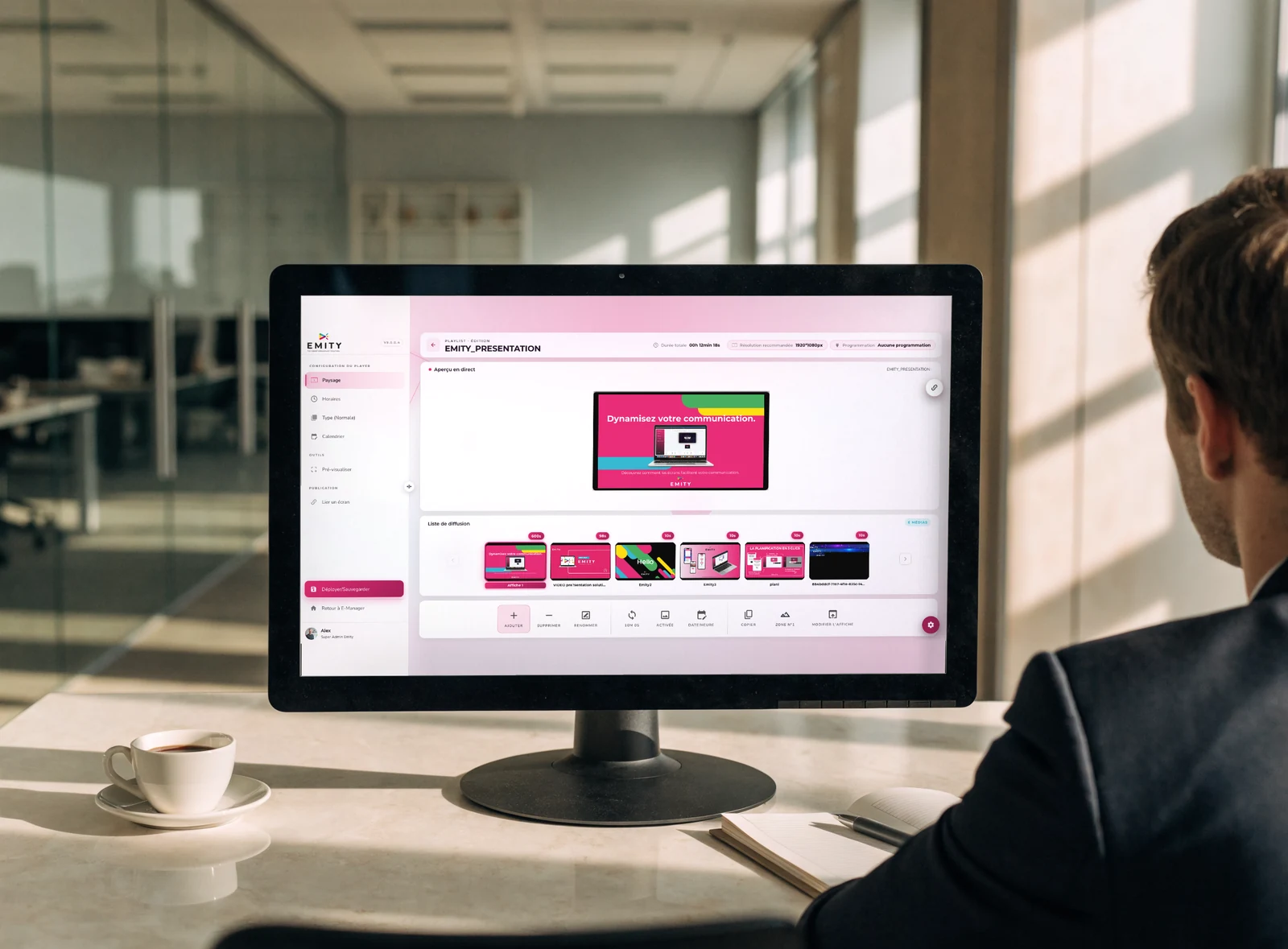
Four ways to reach it
Depending on the hardware, access takes four forms:
- ✓On the display: the E-SOFT app installs directly when the screen has its own system
- ✓On a workstation: desktop or laptop, running Windows, macOS, Linux or Chrome OS
- ✓In a browser: your E-MANAGER playlists display from a simple web address, handy on a Smart TV
- ✓On mobile and tablet: iOS and Android, to manage remotely
It is the same account and the same content library in every case: a screen you add appears in the console and receives its playlist.
Displays
Eleven display brands, eleven installation guides
Each brand has its own guide, written and kept up to date by our support team.
| Brand | Embedded system | Installation guide |
|---|---|---|
| Samsung | Tizen | View the guide → |
| LG | webOS | View the guide → |
| Sony | Android | View the guide → |
| Philips | Android | View the guide → |
| iiyama | Android | View the guide → |
| SimplyTab | Android | View the guide → |
| TCL | depends on the model | View the guide → |
| VESTEL | depends on the model | View the guide → |
| MAXHUB | depends on the model | View the guide → |
| ViewSonic | depends on the model | View the guide → |
| Allsee | depends on the model | View the guide → |
Why “depends on the model”?
With some manufacturers the embedded system changes from one range to the next, and sometimes from one year to the next. Rather than publishing information that would age badly, the brand’s installation guide gives the exact procedure. If you have any doubt about a specific reference, send it to our team: the check takes a few minutes, before you buy.
Players
When the screen has no system,
a player takes over.
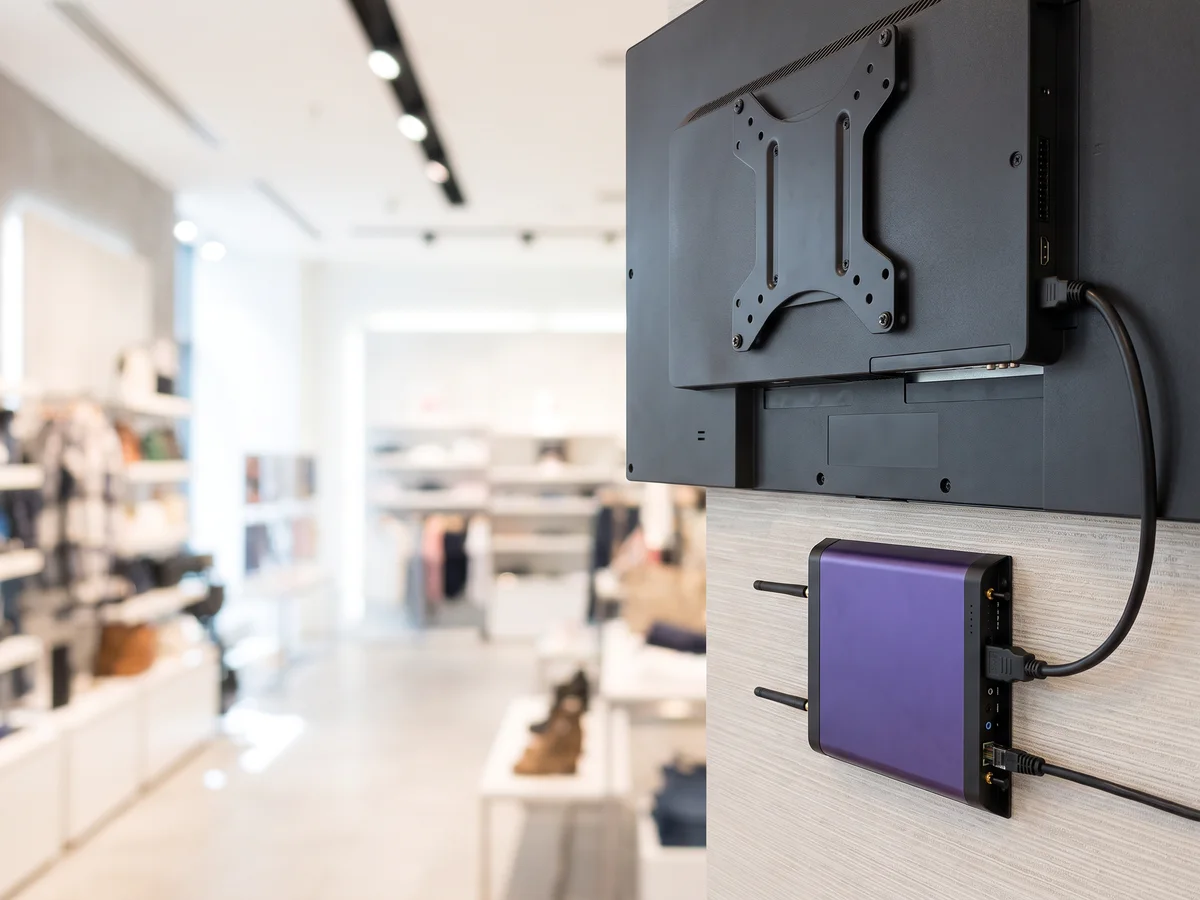
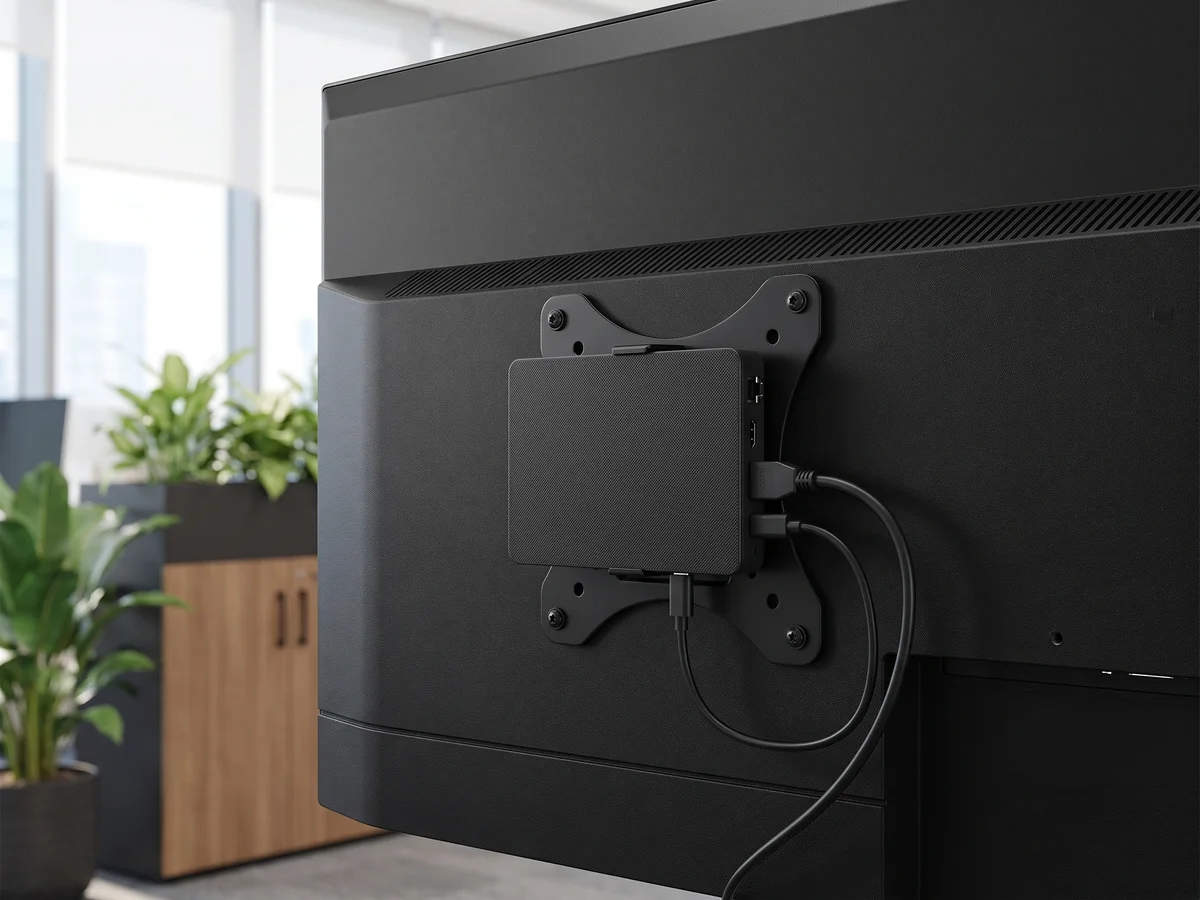
An older monitor, a projector, a kiosk without a system: a player connects over HDMI behind the panel and handles playback. EMITY’s E-BOX players and the devices on the market are all managed from E-MANAGER.





Take over an estate without replacing it
An estate is built in stages. Both approaches sit side by side without difficulty:
EMITY also takes over an estate already running other software: that is the principle behind the Replay label.
What sets us apart
An estate of several brands, a single console
This is what distinguishes EMITY from a manufacturer’s own software, which only drives that manufacturer’s screens.
In practice, in the same console:
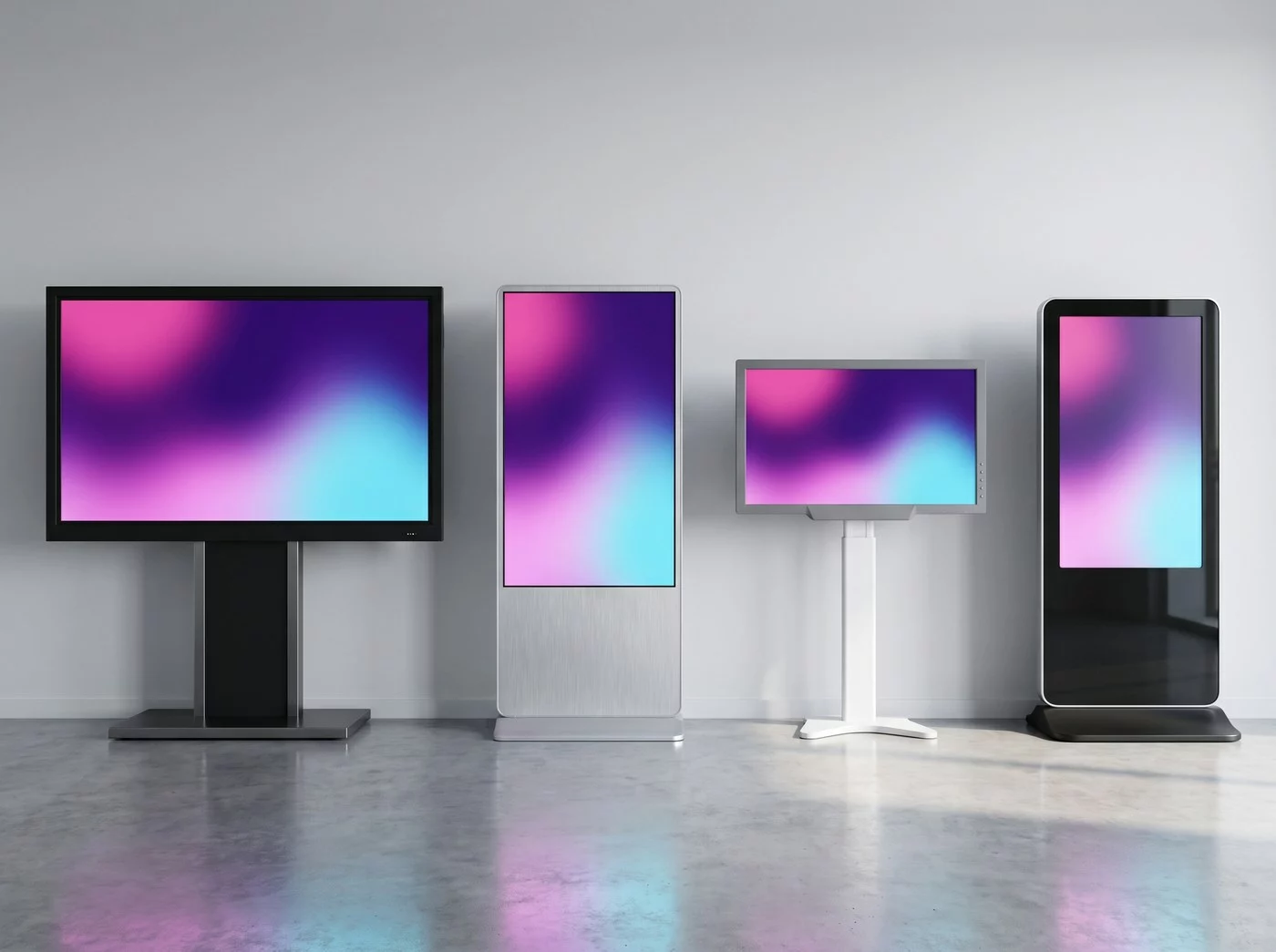
- ✓A Samsung display on Tizen and an LG on webOS, on the same playlist
- ✓A Sony totem on Android and an older monitor with a player
- ✓A Windows workstation at head office and a Raspberry Pi at a remote site
- ✓Landscape and portrait formats mixed, each with its own content
The practical consequence: choosing your next screen becomes a question of price and use, not of compatibility.
Method
Checking whether a piece of equipment is compatible
Three steps, and no surprise at installation time.
Note the reference
The exact model is printed on the back of the display or shown in its information menu. It is the only figure that matters: one brand can cover several systems.
Open the brand’s guide
Each brand has a step-by-step procedure. It states the expected system, the minimum version and what to do.
Have it confirmed if in doubt
A display that is not on the list, a very recent range, a renewal project: our team checks the reference with you before you buy.
Every guide is gathered in the EMITY knowledge base. Support answers on +33 4 30 00 66 01, Monday to Friday, 9 am to 12.30 pm and 1.30 pm to 5 pm.
FAQ


